




123DontMessWitMe
Administrator
-
Joined
-
Last visited
Everything posted by 123DontMessWitMe
-
 Allie, for whom without, there would be NO CUBE!
 -
Looks kind of like a downgraded version of this real cool game called Roblox. You should try that out.
You can't.
Processor: AMD Ryzen 9 7950X 16c32t @4.5GHz (100-100000514WOF) RAM: 64GB (2x32GB) DDR5 6000 MT/s Corsair Vengeance CL30 (CMK64GX5M2B6000Z30) Graphics Card: EVGA GeForce RTX 3080 Ti FTW3 ULTRA GAMING (12G-P5-3967-KR) NVMe: 1TB SAMSUNG 970 EVO (MZ-V7E1T0BW) SSD: 8TB Samsung 870 QVO (MZ-77Q8T0B) MOBO: Asus ROG STRIX B650E-F GAMING WIFI (90MB1BQ0-M0AAY0) PSU: EVGA SuperNOVA 850 P6 (220-P6-0850-X1) Monitor 1: GIGABYTE M27Q, IPS, 27 inch, 2560x1440p, 170Hz (M27Q-SA) Monitor 2: GIGABYTE M27Q, IPS, 27 inch, 2560x1440p, 170Hz (M27Q-SA) Monitor 3: Asus PB278Q - 27 Inch, 2560x1440p, 75Hz (PB278Q) Keyboard: EVGA Z20 RGB Optical Mechanical Gaming Keyboard (812-W1-20US-KR) Mouse: Razer Basilisk V3 (RZ01-04000100-R3U1) It runs classicube with at least 2 frames.
You most likely have some HotKeys set in the client that are sending those commands. You can check for and remove HotKeys with the client open by pressing ESC to open the Menu > click on "Hotkeys" > Click on the hotkey in question > Click "Remove hotkey". This will remove the hotkey and shouldn't send the command anymore when you click on that key.
You can change your client mode in the launcher by going to Options > Mode > Click on the mode you want to use, in this case, "Enhanced". The next time the Client is launched, and the times after that, it will use the mode you selected.
Running game servers on residential internet, for example Comcast and possibly many others, is actually against the TOS and could get your parents in trouble. There are far too many dead, low effort, unoriginal servers already. It would probably be best to stick to one server that you like and just play on it with your friends or whatnot. If you really want to still have a server of your own, you would need to purchase a server online or have someone else host it for you.
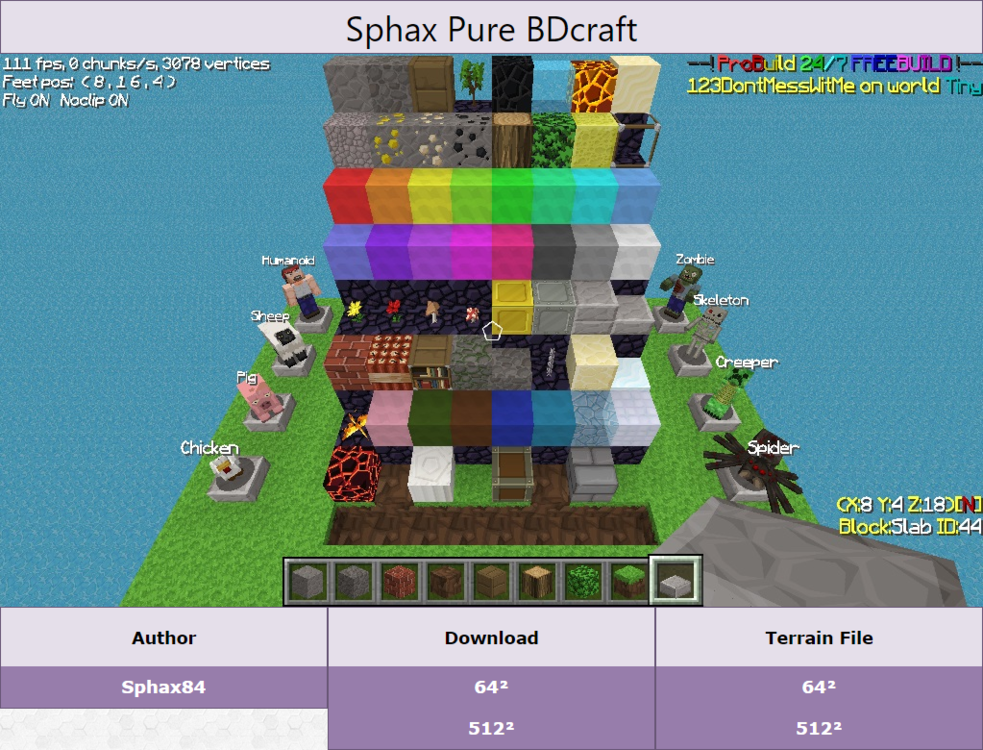
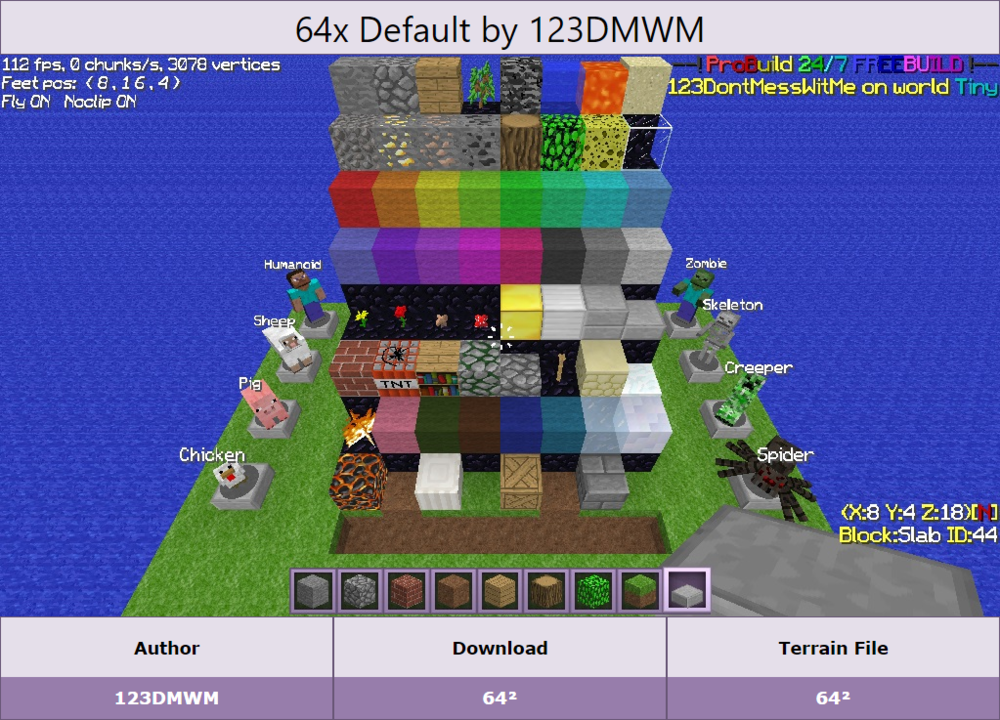
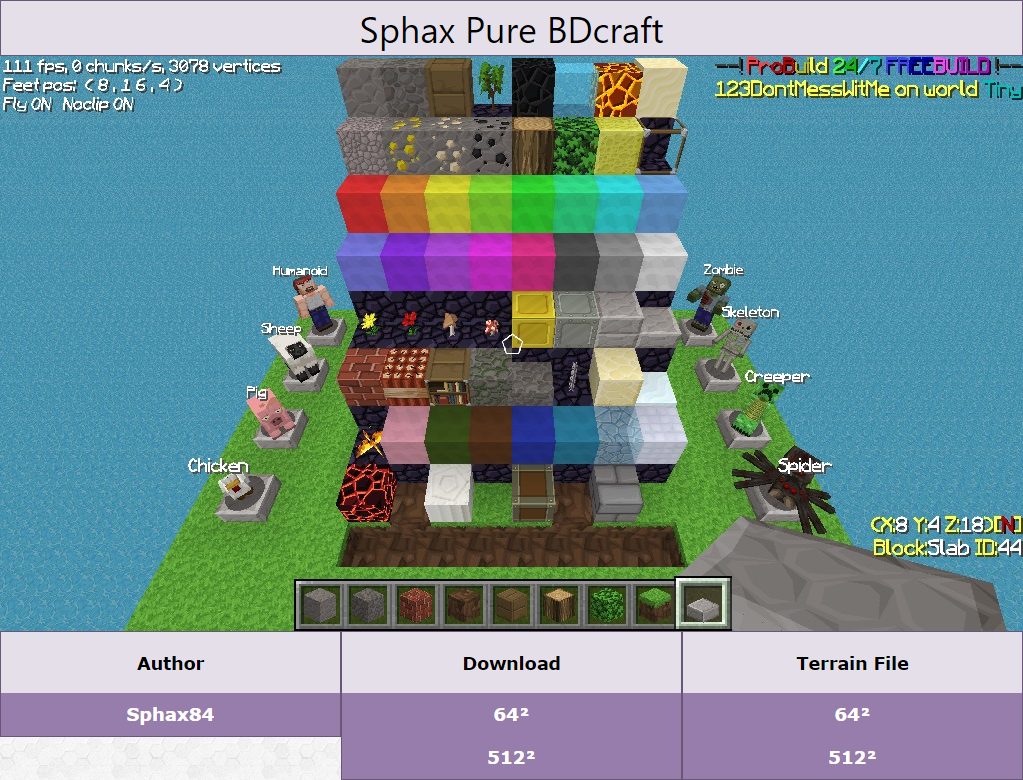
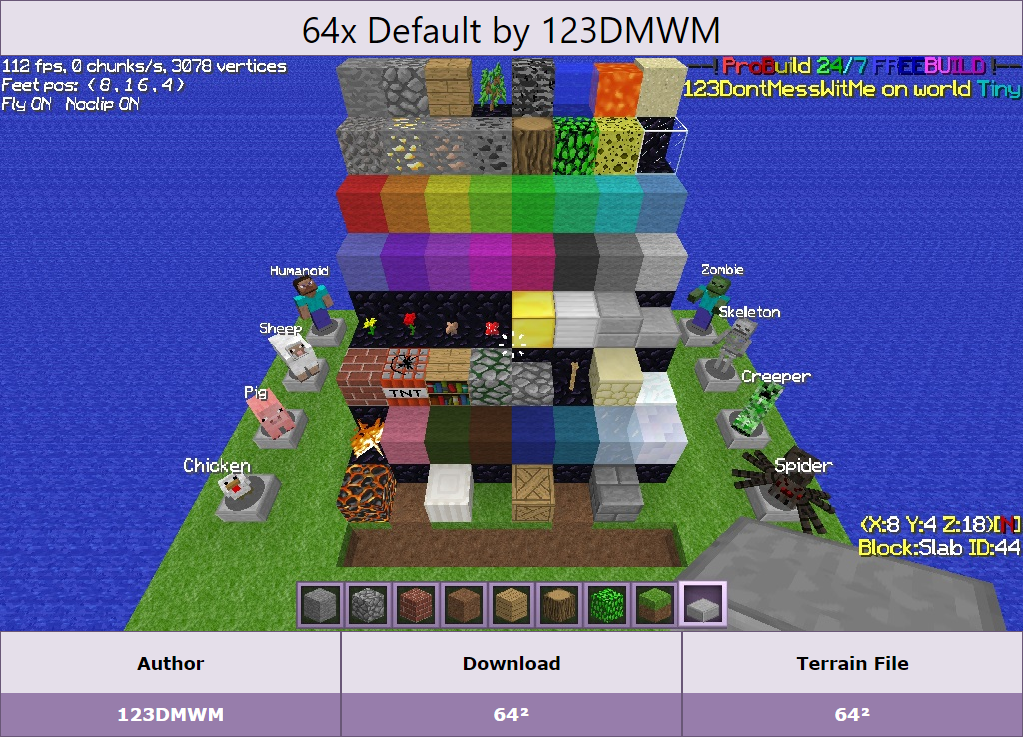
It's not up to me what texture packs you convert yourself. These are just ones that I have personally converted in the past to work with ClassiCube.
The ./colormap/grass.png file is used for specifying grass color based on the environment.
 6!÷5
5!
This mainly happens if you are using a VPN or Proxy.
You're welcome!
It's the 5g towers I tell ya.
Wish granted, but you weren't wearing a space suit at the time of your wish, so you suffocated while flash freezing in the vacuum of space. I wish people would stop posting to the forums like chimpanzees on typewriters.
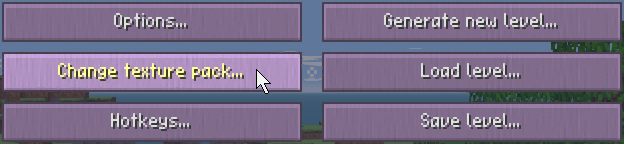
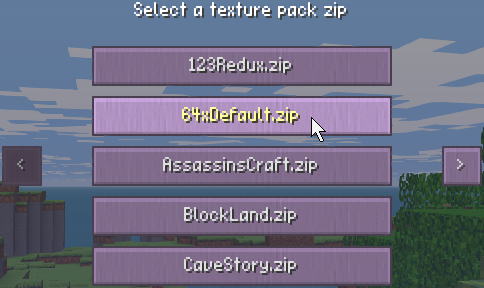
Step 1: Find a texture pack to use. I have a few you can choose from on my website [HERE] Step 2: Place the texture pack .zip file into the "texpacks" folder in the main folder where you extracted ClassiCube to. (Where the default.zip is) Step 3: In the client, go to the menu with the "ESC" key and click on "Change texture pack...". Step 4: Now click on the texture pack you want to use. DONE! Texture packs on servers using MCGalaxy use: Personal OS map: /os map texturepack Server or Level: /texture global/level
6!÷5
5!
This mainly happens if you are using a VPN or Proxy.
You're welcome!
It's the 5g towers I tell ya.
Wish granted, but you weren't wearing a space suit at the time of your wish, so you suffocated while flash freezing in the vacuum of space. I wish people would stop posting to the forums like chimpanzees on typewriters.
Step 1: Find a texture pack to use. I have a few you can choose from on my website [HERE] Step 2: Place the texture pack .zip file into the "texpacks" folder in the main folder where you extracted ClassiCube to. (Where the default.zip is) Step 3: In the client, go to the menu with the "ESC" key and click on "Change texture pack...". Step 4: Now click on the texture pack you want to use. DONE! Texture packs on servers using MCGalaxy use: Personal OS map: /os map texturepack Server or Level: /texture global/level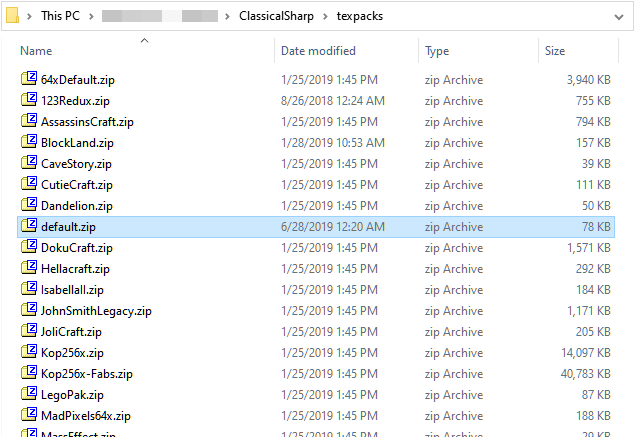
 /help import
 .cw is the ClassicWorld file format. It is the custom file format for minecraft classic worlds. You can read about it here: https://wiki.vg/ClassicWorld_file_format You can use it by importing it into a server or by placing it into the maps folder of the classicube client to play it in singleplayer.







Account
Search
Configure browser push notifications
Chrome (Android)
- Tap the lock icon next to the address bar.
- Tap Permissions → Notifications.
- Adjust your preference.
Chrome (Desktop)
- Click the padlock icon in the address bar.
- Select Site settings.
- Find Notifications and adjust your preference.
Safari (iOS 16.4+)
- Ensure the site is installed via Add to Home Screen.
- Open Settings App → Notifications.
- Find your app name and adjust your preference.
Safari (macOS)
- Go to Safari → Preferences.
- Click the Websites tab.
- Select Notifications in the sidebar.
- Find this website and adjust your preference.
Edge (Android)
- Tap the lock icon next to the address bar.
- Tap Permissions.
- Find Notifications and adjust your preference.
Edge (Desktop)
- Click the padlock icon in the address bar.
- Click Permissions for this site.
- Find Notifications and adjust your preference.
Firefox (Android)
- Go to Settings → Site permissions.
- Tap Notifications.
- Find this site in the list and adjust your preference.
Firefox (Desktop)
- Open Firefox Settings.
- Search for Notifications.
- Find this site in the list and adjust your preference.