


Goodly
Moderator
-
Joined
-
Last visited
Everything posted by Goodly
-
 In the file Input.c, line 750: if (delta < 250) return; /* 4 times per second */ 250 is the amount of milliseconds between each click when holding down mouse. Change it to be lower to click faster. Compilation instructions can be found along with the source code here: https://github.com/UnknownShadow200/ClassiCube
 -
https://www.classicube.net/server/list/
-
/os lb edit [block ID] order 0
-
Please take a picture of the issue and upload it here.
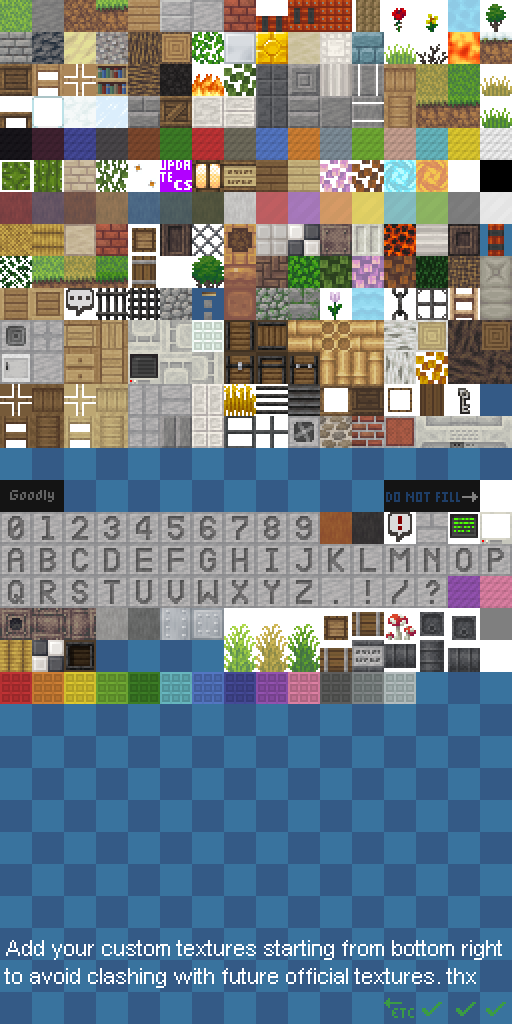
What yolkbird said. We add global server textures from the top down, so to avoid conflicting with those when you add LBs, you should start at the bottom. This is also why there are two nearly unused rows in the middle of the terrain. It used to be the top half was all we had, so many old maps would get messed up if I added global textures there.
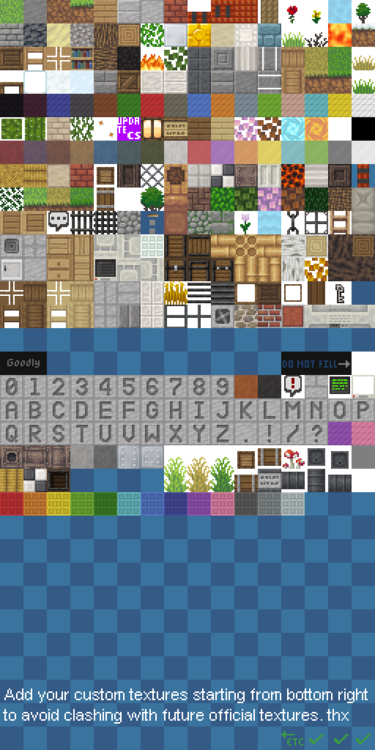 The 12 LB slots is probably because he copied NA2's terrain concept but without actually realizing why we did it that way
1. The themes are a preset list of types of map generation that are built into the software. You can see a list of themes by using /help newlvl themes. As far as I'm aware, no one has made any extra themes available to download online, though it would be possible for an MCGalaxy plugin to add more if someone made one. For heightmap theme, you add an extra argument for the URL of the image you are basing the heightmap on. Normally the last argument is optional and is the seed used for the random generation. 2. You can set the texture pack for a level (so that everyone can see it) with /os map texture . Texture packs must be a .zip file which contains the terrain.png as well as other textures for mobs, weather, and gui if you desire. You can find a template texture pack here. 3. You can add new functionality to ClassiCube either by making a plugin for the server (or modifying the server directly!) or by modifying the client source code and compiling your own version. Depending on the feature, if you want it to work in multiplayer you may have to add new protocol to the specification, which would require you to modify both the client and server to support it. Your example of a cart from minecraft could be achieved relatively easily by creating a custom model for a mine cart, then using an MCGalaxy plugin to make it move (as well as anyone who rides it) You will need to know C# and C to modify the client and server, respectively. Hope this helps. Feel free to join the discord if you have more complex questions, as it's easier to have back-and-forth conversations there.
Congratulations on figuring it out on your own
The 12 LB slots is probably because he copied NA2's terrain concept but without actually realizing why we did it that way
1. The themes are a preset list of types of map generation that are built into the software. You can see a list of themes by using /help newlvl themes. As far as I'm aware, no one has made any extra themes available to download online, though it would be possible for an MCGalaxy plugin to add more if someone made one. For heightmap theme, you add an extra argument for the URL of the image you are basing the heightmap on. Normally the last argument is optional and is the seed used for the random generation. 2. You can set the texture pack for a level (so that everyone can see it) with /os map texture . Texture packs must be a .zip file which contains the terrain.png as well as other textures for mobs, weather, and gui if you desire. You can find a template texture pack here. 3. You can add new functionality to ClassiCube either by making a plugin for the server (or modifying the server directly!) or by modifying the client source code and compiling your own version. Depending on the feature, if you want it to work in multiplayer you may have to add new protocol to the specification, which would require you to modify both the client and server to support it. Your example of a cart from minecraft could be achieved relatively easily by creating a custom model for a mine cart, then using an MCGalaxy plugin to make it move (as well as anyone who rides it) You will need to know C# and C to modify the client and server, respectively. Hope this helps. Feel free to join the discord if you have more complex questions, as it's easier to have back-and-forth conversations there.
Congratulations on figuring it out on your own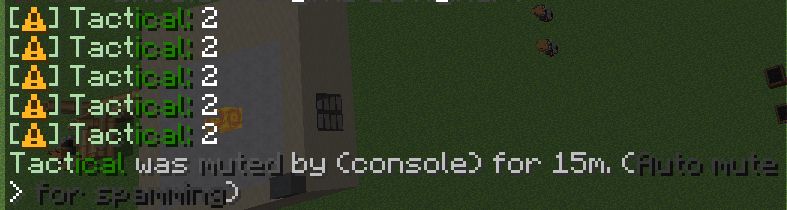 There is no public repository of models. You need to make your own to upload, like in the tutorial on the custom model plugin.
https://github.com/UnknownShadow200/MCGalaxy#setup
That doesn't make them useless at all. This program only allows you to swap out existing skin pieces on entire limbs at a time. It's nowhere near a proper substitute for making actual custom skins.
Follow the guide in the README.md here: https://github.com/NotAwesome2/MCGalaxy-CustomModels
It's a lot easier for people to answer accurately if you don't use confusing and misleading terms. What you're calling a "private server" is just singleplayer mode. Unfortunately there is no way to copy and paste builds in singleplayer. However, you can run an actual private server, such as MCGalaxy, and then import your save map, and use its /copy and /paste commands to work on your map there. Read "README.md" to set it up. Then, save your singleplayer world, and put it into the extras/import folder. Then, use /import [levelname] Then you may use /goto [levelname] to get to it.
I created an original texture pack for ClassiCube, which is currently used for the steam and webclient release. You can download it here: https://static.classicube.net/default.zip
README.md on this page: https://github.com/UnknownShadow200/MCGalaxy Note: You must have a real computer (chromebook does not work)
Post pictures of it...
https://github.com/NotAwesome2/MCGalaxy-CustomModels/
Issues with an individual server should be reported to that server's staff. If the staff are complicit, stop playing there.
/whonick [nickname] or better yet: /ignore nicks
This is normal. There are bots that go around connecting to everything they can, but nothing will come of it. https://security.stackexchange.com/questions/24936/weird-ip-addresses-showing-up-on-my-server
You're on the wrong website buddy, your picture isn't even ClassiCube.
There is no public repository of models. You need to make your own to upload, like in the tutorial on the custom model plugin.
https://github.com/UnknownShadow200/MCGalaxy#setup
That doesn't make them useless at all. This program only allows you to swap out existing skin pieces on entire limbs at a time. It's nowhere near a proper substitute for making actual custom skins.
Follow the guide in the README.md here: https://github.com/NotAwesome2/MCGalaxy-CustomModels
It's a lot easier for people to answer accurately if you don't use confusing and misleading terms. What you're calling a "private server" is just singleplayer mode. Unfortunately there is no way to copy and paste builds in singleplayer. However, you can run an actual private server, such as MCGalaxy, and then import your save map, and use its /copy and /paste commands to work on your map there. Read "README.md" to set it up. Then, save your singleplayer world, and put it into the extras/import folder. Then, use /import [levelname] Then you may use /goto [levelname] to get to it.
I created an original texture pack for ClassiCube, which is currently used for the steam and webclient release. You can download it here: https://static.classicube.net/default.zip
README.md on this page: https://github.com/UnknownShadow200/MCGalaxy Note: You must have a real computer (chromebook does not work)
Post pictures of it...
https://github.com/NotAwesome2/MCGalaxy-CustomModels/
Issues with an individual server should be reported to that server's staff. If the staff are complicit, stop playing there.
/whonick [nickname] or better yet: /ignore nicks
This is normal. There are bots that go around connecting to everything they can, but nothing will come of it. https://security.stackexchange.com/questions/24936/weird-ip-addresses-showing-up-on-my-server
You're on the wrong website buddy, your picture isn't even ClassiCube.








Account
Search
Configure browser push notifications
Chrome (Android)
- Tap the lock icon next to the address bar.
- Tap Permissions → Notifications.
- Adjust your preference.
Chrome (Desktop)
- Click the padlock icon in the address bar.
- Select Site settings.
- Find Notifications and adjust your preference.
Safari (iOS 16.4+)
- Ensure the site is installed via Add to Home Screen.
- Open Settings App → Notifications.
- Find your app name and adjust your preference.
Safari (macOS)
- Go to Safari → Preferences.
- Click the Websites tab.
- Select Notifications in the sidebar.
- Find this website and adjust your preference.
Edge (Android)
- Tap the lock icon next to the address bar.
- Tap Permissions.
- Find Notifications and adjust your preference.
Edge (Desktop)
- Click the padlock icon in the address bar.
- Click Permissions for this site.
- Find Notifications and adjust your preference.
Firefox (Android)
- Go to Settings → Site permissions.
- Tap Notifications.
- Find this site in the list and adjust your preference.
Firefox (Desktop)
- Open Firefox Settings.
- Search for Notifications.
- Find this site in the list and adjust your preference.