Desaxu
Glod Menbie
-
Joined
-
Last visited
Everything posted by Desaxu
-
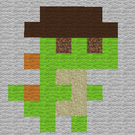 Hello ClassiCube Members! I am going to show you my first texture pack: DesaxuPack. Unfortunately, im not going to release this due to the fact that this is my personal texture pack, so here are some screenshots of the pack: (this pack was updated on 3/2/21.) Blocks: The blocks looks visually different from its default, Leaves are bit odd, cobblestone, mossy cobblestone and the 2 liquids, Water and Lava has been repeatable now, and in the texture pack, there are custom blocks, a pot, Checkered Block, Missing Texture blocks, Acid and Mud and the Slime Blocks. Mobs Along with the blocks, the mobs has been changed. the default skin (aka char.png) has been changed along with the rest of the mobs. (somehow the sheep's wool looks broken, and i dont know why, i have the sheep fur separately, and i created the sheep skin via Blockbench.). If you have any questions, please comment below.
 -
(not trying to be rude or anything.) thats like saying that children under 13 should play Classicube is like saying that COPPA shouldn't exist...
-
DPad to move, Up arrow on the right is jumping, you can place blocks by tapping and holding the screen to delete the block. (You can also select a block by tapping a block or [...] to select a block from the inventory.)
-
"By the holy gods, what accursed sin did you bring into this holy lands of Classicube!"
-
accidentally dropping my old LG phone on the hard wood floor, breaking the screen.
-
ImagePrint makes a image out of blocks with URLs or .bmp files, heres how it works in both ways: URL: any url leading to an image that is a bmp file, such as a stock bmp image and such. File: any files in the /extra/images Folder, however, it must be a .bmp file to work, otherwise it will fail. (you can drag and rename a .png file to .bmp so it can read it in the folder) (this part effects only based on your server due to it being in the MCGalaxy folders, so if you dont have MCGalaxy, you'll need to install it and host a server, then drag a .bmp file into the folder above in MCGalaxy and then you can type the command out.) After that, you'll need to place/break 2 blocks and the image will appear using a palette for the blocks that will use as the colors of the image. Please note that if your on a server, you'll have to use the URL and not the File, and the command may have perms set differently depending on the server.
-
comedy
-
-
oh, thats simple, heres how to do it: 1. Open MCGalaxy.exe 2. Click on Settings 3. Below General Configuration there is a textbox next to Name, default is [MCGalaxy] Default but you can change it to whenever you like. (the screenshot shows my LAN server's name) 4. Click Apply or Save 5. Then go back to the main window and click Restart. (Warning: it may popup a window saying if you want to restart the server) But if you want to do it without the window (it requires a restart to take effect) heres how to do it. 1. Goto the server.properties file in your MCGalaxy properties file. 2. Open the file via any text editor application 3. Scroll until you reach server-name under "# Server settings" comment. (screenshot is different than yours, probably.) 4. Edit it to anything (default name is [MCGalaxy] Default) 5. Save the file and restart the server. And thats it, basically.





-
Sorry for the late answer, but theres /ModelScale to scale the model, but for lowering the arms and such, you may need the CustomModels plugin, i sincerely don't know about editing a model in Classicube besides 3D Modeling tools like Blender or Blockbench.
-
-