UnknownShadow200
Administrator
-
Joined
-
Last visited
Everything posted by UnknownShadow200
-
 What compilation flags did you provide when compiling ClassiCube? As by default it will automatically compile to use OpenGL instead of OpenGL ES Also, if you move far enough away from the world so that only the sky is visible and then open chat, does is have a transparent background or is it also completely black?
-
What is the exact error message you are getting?
-
What error messages are you getting?
-
Are you setting the texture pack URL via /texture level <url>, or via manually editing the .properties level properties file? Try changing from www.dropbox.com to dl.dropbox.com
-
ClassiCube plays music by randomly picking an .ogg file in the audio folder, so you can change the .ogg files in or add more .ogg files to the audio folder to customise the music that gets played
-
Most likely you need to install the Baltimore CyberTrust Root root SSL certificate into the System Keychain. I haven't tried myself, but one of these ways should probably work: 1. Navigating to https://www.classicube.net in Safari and trusting the certificate from there (https://help.ivanti.com/ap/help/en_US/fd/2020/Content/FileDirector/Admin/Clients/Mac_Client/Install_Root_Certificate_on_Mac.htm) 2. Manually downloading the .crt from https://www.digicert.com/kb/digicert-root-certificates.htm and then double clicking it to install the certificate (https://www.eduhk.hk/ocio/content/faq-how-add-root-certificate-mac-os-x or https://support.n4l.co.nz/s/article/Installing-an-SSL-Certificate-on-an-Apple-OS-X-Device-Manually) If that still doesn't work, then try adding https-verify=false to options.txt to disable SSL certificate validation for ClassiCube (not a great idea security wise though) As an absolute last resort, try adding to http-no-https=True to force ClassiCube to connect to classicube.net over http:// instead of https://. Keep in mind that turning on this option means your account password is transmitted over the network in plain text when you sign in.
-
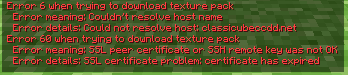
ClassiCube relies on the SSL libraries and certificates provided by the operating system Can you please update your game to the latest dev build (Updates > Latest dev build)? I have improved the error handling so that it should include more details about the error now
-
Are you running in classic mode or enhanced mode? (Launcher > Options > Mode) If in enhanced mode, if in-game you go to ESC > Options > Nostalgia Options, is both 'Use CPE' and 'Use server textures' on?
-
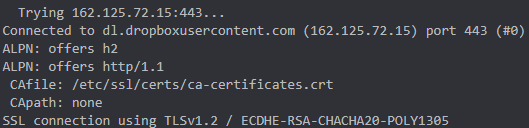
Are you using macOS or Linux? If so: The error code is caused by being unable to establish a secure connection to the webserver to download the texture pack from You can add curl-verbose=true to options.txt to get more detailed information to be shown in the Terminal window If only you are unable to download the texture pack though while others can download it fine, that usually means the reason why the secure connection is failing has something to do with your computer setup (typically outdated SSL libraries or certificates)
-
What error message are you seeing in chat?
-
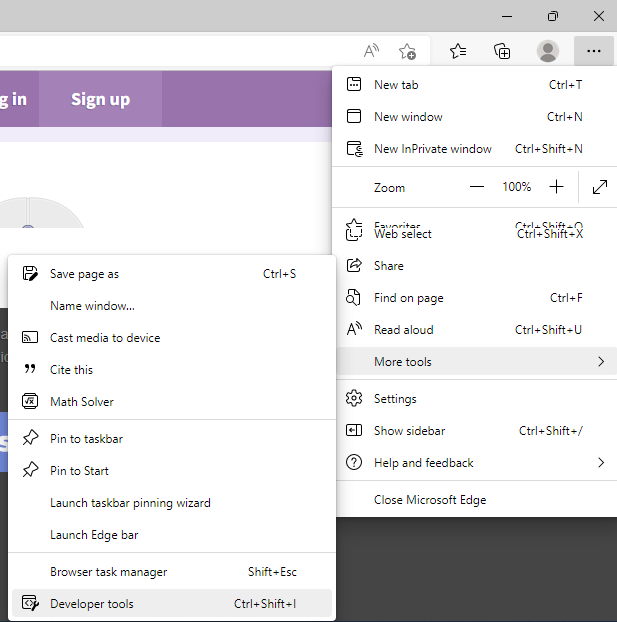
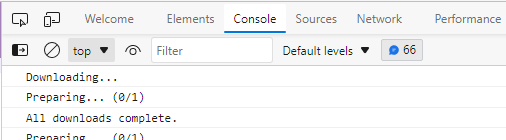
1. Click 3 dots in top left > More Tools > Developer Tools 2. Click Console tab 3. Reload the page 4. Copy or screenshot output from Console tab - unexpected errors should be in red

-
What web browser and device you are using?
-
Which browser are you using? Does this happen in singleplayer or multiplayer?
-
What operating system are you using? Are you able to play audio in other applications without any issues?
-
Are you using latest release or latest dev build? A change was made 18 days ago that may address your input issues, although the change is only in dev builds (https://github.com/UnknownShadow200/ClassiCube/commit/57504bf22e25e4eea01870966f39f3390c929d99)
-
Which operating system are you using? Are you using webclient or native client?
-
This should be fixed now, it was my fault for not testing a recent change thoroughly enough
-
You need to define r as a valid colour code first using /customcolors add r
-
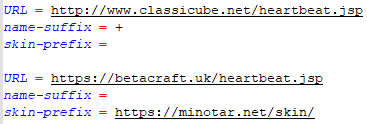
The classicube-account-plus option applies to all accounts and regardless of name verification mode If you're only seeing + at end of names just now after name verification mode was enabled, this would likely be because in authservices.properties, name-suffix for players connecting via classicube.net is set to + (as to why this would be done, it's so that the ClassiCube account "Test" is treated as a separate player from the Minecraft account "Test") Setting name-suffix to blank and then doing /server reload will turn off that behaviour
-
What is the URL of the texture pack you are having issues with?
-
On lines 461-462 replace BlockID raw = p.ConvertBlock(block); p.Send(Packet.HoldThis(raw, locked, p.hasExtBlocks)); with if (!p.Session.SendHoldThis(block, locked)) { p.Message("Your client doesn't support changing your held block."); }
-
If you are trying to maximise performance 1) Make sure view distance is turned all the way down to minimum 2) Do /client rendermode normalfast (sacrifices fog/clouds for better performance) What is the output of /client gpu ? Would help to know what GPU etc the laptop has
-
Are you using desktop or webclient? Do you see a message box of ""default.zip is missing, try downloading resources..." when starting the game? Are you seeing any messages (if you scroll to top of chat history) about error loading texture pack?
-
Can you provide more detail on what you mean by it doesn't work? For both browser and native application?
-
Main difference is: 'classic walk anim: on' - arms of players appear to flap around when moving 'classic walk anim: off' - arms of players mainly just swing back and forth when moving