Jump to content
View in the app

A better way to browse. Learn more.

ClassiCube Forum

A full-screen app on your home screen with push notifications, badges and more.

To install this app on iOS and iPadOS
  1. Tap the Share icon in Safari
  2. Scroll the menu and tap Add to Home Screen.
  3. Tap Add in the top-right corner.
To install this app on Android
  1. Tap the 3-dot menu (⋮) in the top-right corner of the browser.
  2. Tap Add to Home screen or Install app.
  3. Confirm by tapping Install.

Help with these servers

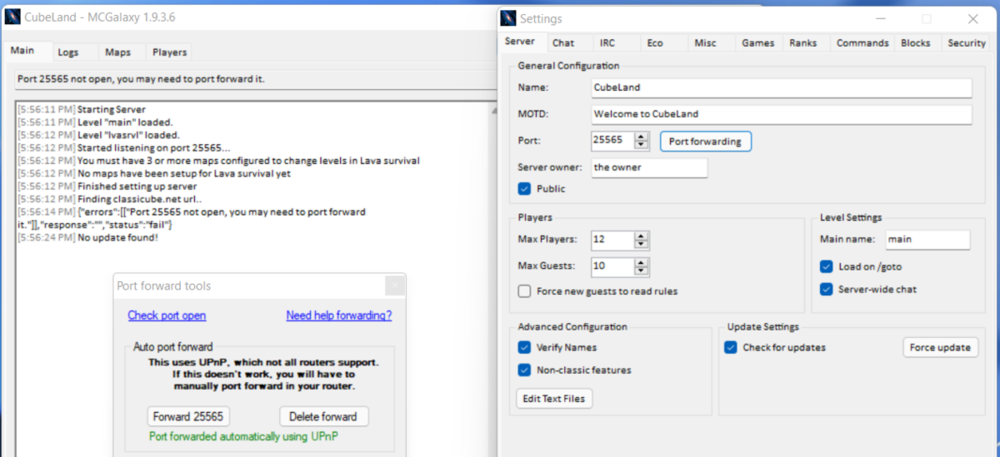
I need help creating a server. Whenever I create a server  I get a error message (port 25565 not open, you may need to port forward it) and see what I did in that little box over there. It still shows that stupid error when I restart the server. This is frustrating and I have tried this on so many ports. Any help? Plus the McGalaxy page does not include even some help for this problem.image.thumb.png.d9513e6010cf7a4e1f46aa0963f1fdd6.png

Featured Replies

Make the server private then share the link of the server somewhere. Making the server public requires a open port


  • Administrator
1 hour ago, SavageBoy said:

Make the server private then share the link of the server somewhere. Making the server public requires a open port


this won't work in almost all cases - an "open port" is required for anybody to connect.

the heartbeat attempts to connect to your server, and if it can't connect it doesn't give you a link (in order to prevent the server list from having a million servers without the ability to join them) - if you *can* connect externally but the heartbeat still says your port isn't open, then that means you likely have a firewall configuration blocking the heartbeat server from connecting to your server or something.


side note: it worked for you because you have the same ip and are therefore most likely on the same network

Archived

This topic is now archived and is closed to further replies.

Configure browser push notifications

Chrome (Android)
  1. Tap the lock icon next to the address bar.
  2. Tap Permissions → Notifications.
  3. Adjust your preference.
Chrome (Desktop)
  1. Click the padlock icon in the address bar.
  2. Select Site settings.
  3. Find Notifications and adjust your preference.