Jump to content
View in the app

A better way to browse. Learn more.

ClassiCube Forum

A full-screen app on your home screen with push notifications, badges and more.

To install this app on iOS and iPadOS
  1. Tap the Share icon in Safari
  2. Scroll the menu and tap Add to Home Screen.
  3. Tap Add in the top-right corner.
To install this app on Android
  1. Tap the 3-dot menu (⋮) in the top-right corner of the browser.
  2. Tap Add to Home screen or Install app.
  3. Confirm by tapping Install.

HeckenFricken

Glod Menbie
  • Joined

  • Last visited

  1. HeckenFricken changed their profile photo
  2. You download the skin file, and click the choose file button
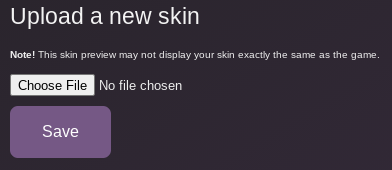
  3. the same way as always 😛
  4. you can still make and use your own
  5. OK, this is pretty cool. But I have a couple of questions. Will there ever be an option to add your own skins? Also, will you ever add the option to preview the skins on the ''Set All'' option, because some of the skins, such as ''Glowing Fantasy'' don't really explain what the skins are. Also, a little nitpick, but why is the Hulk skin called ''Hulk Smash''. As for asking to add MORE skins, maybe add some dreamsmp characters 🙂
  6. i got an SNES for christmas 😄

Configure browser push notifications

Chrome (Android)
  1. Tap the lock icon next to the address bar.
  2. Tap Permissions → Notifications.
  3. Adjust your preference.
Chrome (Desktop)
  1. Click the padlock icon in the address bar.
  2. Select Site settings.
  3. Find Notifications and adjust your preference.