Jump to content
View in the app

A better way to browse. Learn more.

ClassiCube Forum

A full-screen app on your home screen with push notifications, badges and more.

To install this app on iOS and iPadOS
  1. Tap the Share icon in Safari
  2. Scroll the menu and tap Add to Home Screen.
  3. Tap Add in the top-right corner.
To install this app on Android
  1. Tap the 3-dot menu (⋮) in the top-right corner of the browser.
  2. Tap Add to Home screen or Install app.
  3. Confirm by tapping Install.

win7user

Member
  • Joined

  • Last visited

Everything posted by win7user

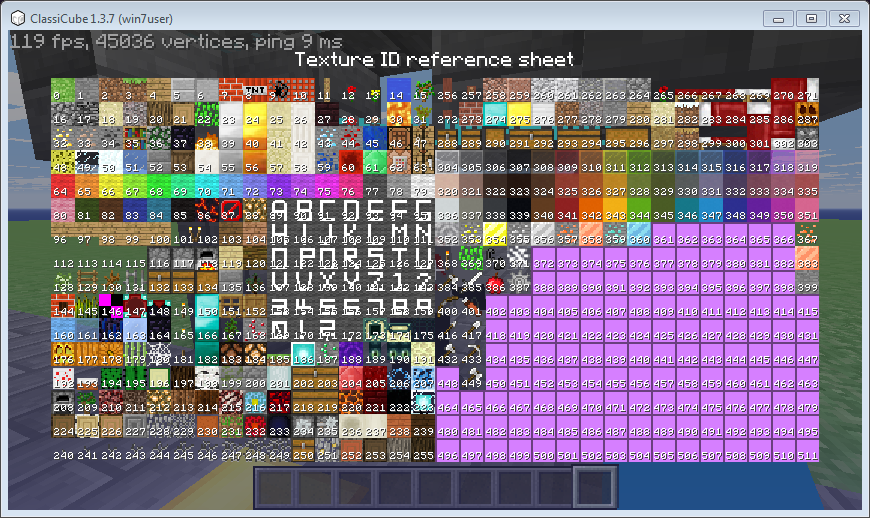
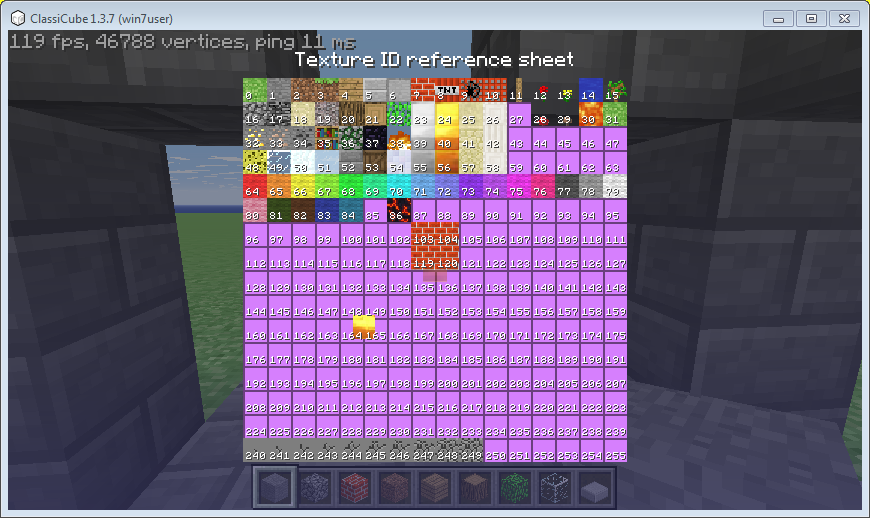
  1. i just putted the texture pack url to the server and it automatically set itself to 511 ids does it work like that ?
  2. thanks for the response i downloaded the latest.zip from the website but it still shows me 255 texture idsUploading Attachment...
  3. hello everyone! so i have heard that there is a version of mc galaxy that has up to ~700+ texture id but i couldn't find the latest version since the one i downloaded from the official mc galaxy website has an old version does anyone have the latest version of the inf-id app/server so i can add my texture pack ?
  4. win7user replied to mel120's topic in I Need Help!
    i joined using my local ip and it worked but im still looking for a fix so i dont have to do that all the time
  5. win7user replied to mel120's topic in I Need Help!
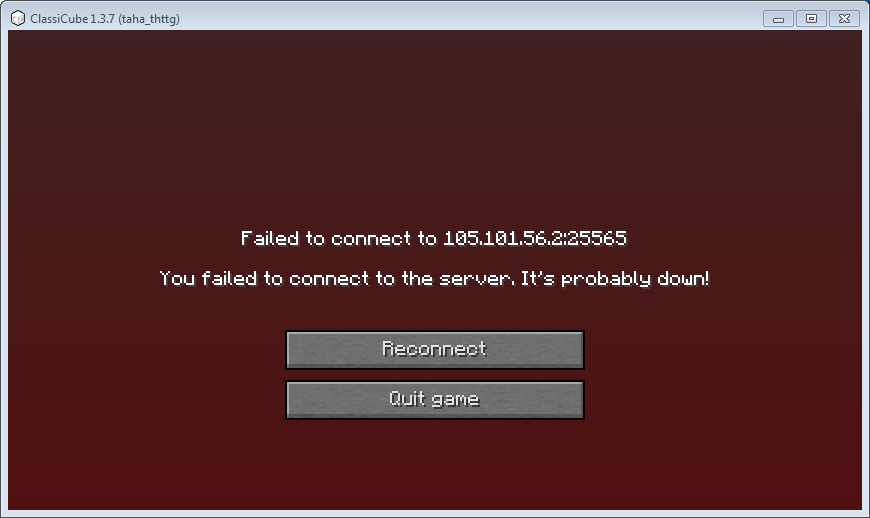
    thats the same error i got while hosting my server publicly i tried the port 80 and 25565 but nothing worked unless if i connected to my server using the web version. could you try joining your server with the web version and tell me if that worked ?
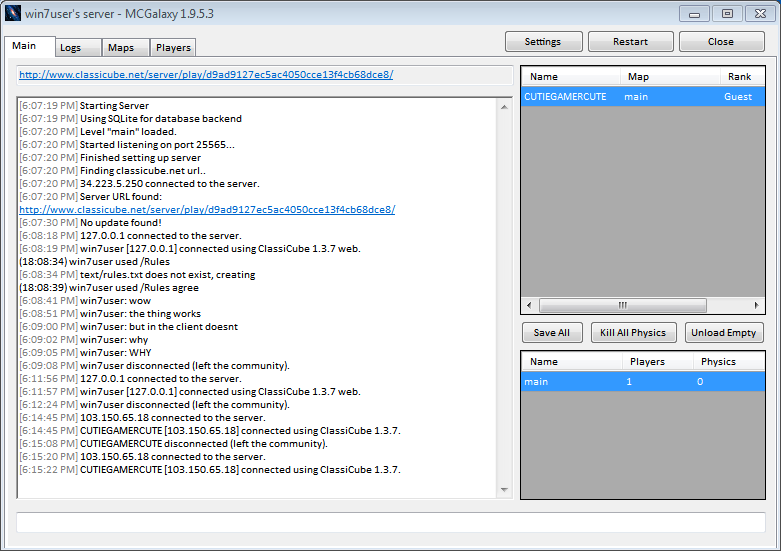
  6. Uploading Attachment... as shown in the pics the server works fine but i cant join on my client but i can join if i use the web version of cc you can also see that a player joined using the client is that a host issue or smth else and if theres any solution to this problem i couldn't type anything in the body bc of the attachments filling up the space to type in
Configure browser push notifications

Chrome (Android)
  1. Tap the lock icon next to the address bar.
  2. Tap Permissions → Notifications.
  3. Adjust your preference.
Chrome (Desktop)
  1. Click the padlock icon in the address bar.
  2. Select Site settings.
  3. Find Notifications and adjust your preference.