
Jump to content
View in the app

A better way to browse. Learn more.

ClassiCube Forum

A full-screen app on your home screen with push notifications, badges and more.

To install this app on iOS and iPadOS
  1. Tap the Share icon in Safari
  2. Scroll the menu and tap Add to Home Screen.
  3. Tap Add in the top-right corner.
To install this app on Android
  1. Tap the 3-dot menu (⋮) in the top-right corner of the browser.
  2. Tap Add to Home screen or Install app.
  3. Confirm by tapping Install.

SuperMario128

Member
  • Joined

  • Last visited

  1. SuperMario128 changed their profile photo
  2. Operating System: Windows 7 Home Premium 64-bit (6.1, Build 7601) Service Pack 1 (7601.win7sp1_ldr_escrow.200102-1707) Language: Spanish (Regional Setting: Spanish) System Manufacturer: Gigabyte Technology Co., Ltd. System Model: To be filled by O.E.M. BIOS: BIOS Date: 09/19/12 18:11:30 Ver: 04.06.05 Processor: Intel(R) Core(TM) i5-3330 CPU @ 3.00GHz (4 CPUs), ~3.2GHz Memory: 8192MB RAM Available OS Memory: 8082MB RAM Page File: 3709MB used, 12454MB available Windows Dir: C:\Windows DirectX Version: DirectX 11
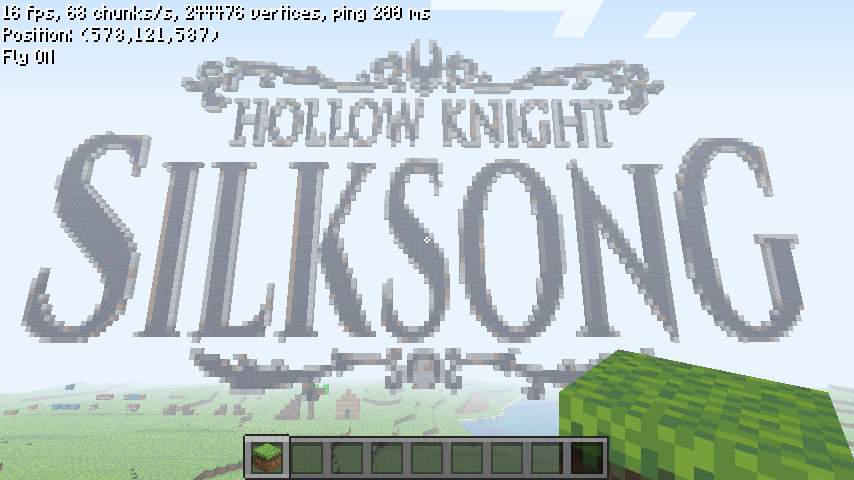
  3. Creditos a New The30´s (Freebuild and Realms)
Configure browser push notifications

Chrome (Android)
  1. Tap the lock icon next to the address bar.
  2. Tap Permissions → Notifications.
  3. Adjust your preference.
Chrome (Desktop)
  1. Click the padlock icon in the address bar.
  2. Select Site settings.
  3. Find Notifications and adjust your preference.